
On Demand Service - Complex System
Turning Raw Data into Operational Decisions

Role
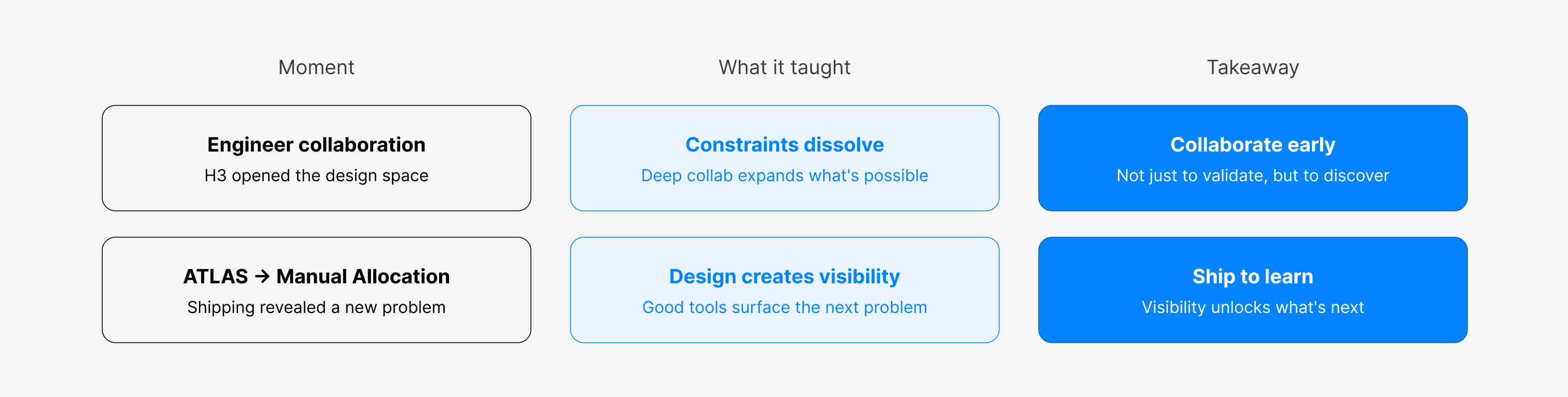
As the product designer, I took the entire ownership and responsibility of this project to run it from initial discovery state to the final concept, Due to its technical complexity, I closely collaborated with the Principal Engineer to ensure the design was both user-centered and technically feasible, balancing user needs with technical constraints.
Problem Statement & Background
Problem Statement
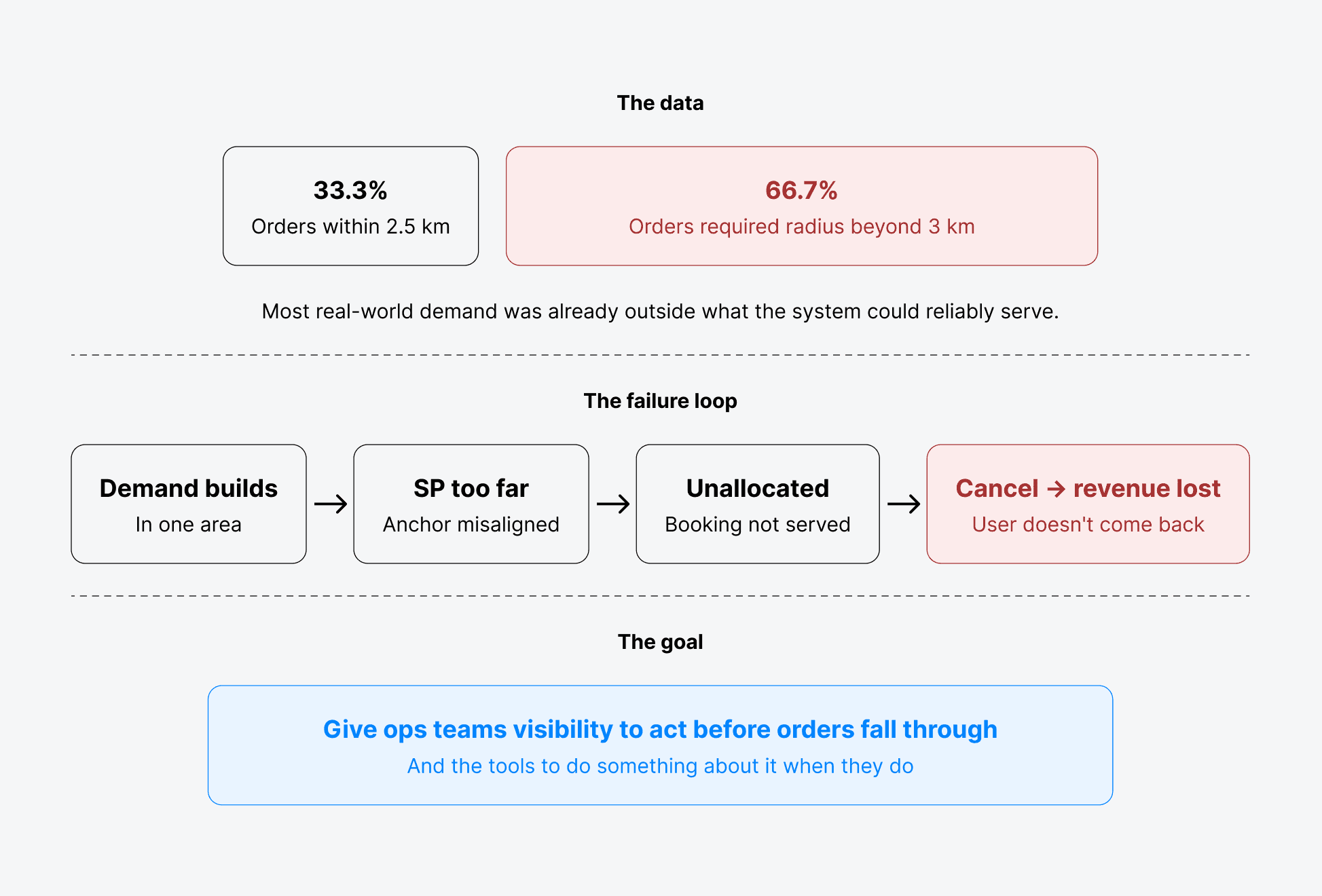
Pinhome Home Service connects users with professional Service Partners (SP) through an on-demand platform. When a booking comes in, the system looks for the nearest available Service Partner within a 2.5 km radius of their anchor point.
It's a simple rule. But the data showed it wasn't working.
Background
On-demand home services live and die by one thing: the right Service Partner, in the right place, at the right time. When that alignment breaks down, bookings go unallocated and users don't come back.
At Pinhome Home Service, that breakdown was already happening at scale. The operations team was managing a real-time, geographically distributed problem with workflows that weren't built for it. Reports came from the data team. Decisions were made after the fact. There was no single place to see the full picture at once.
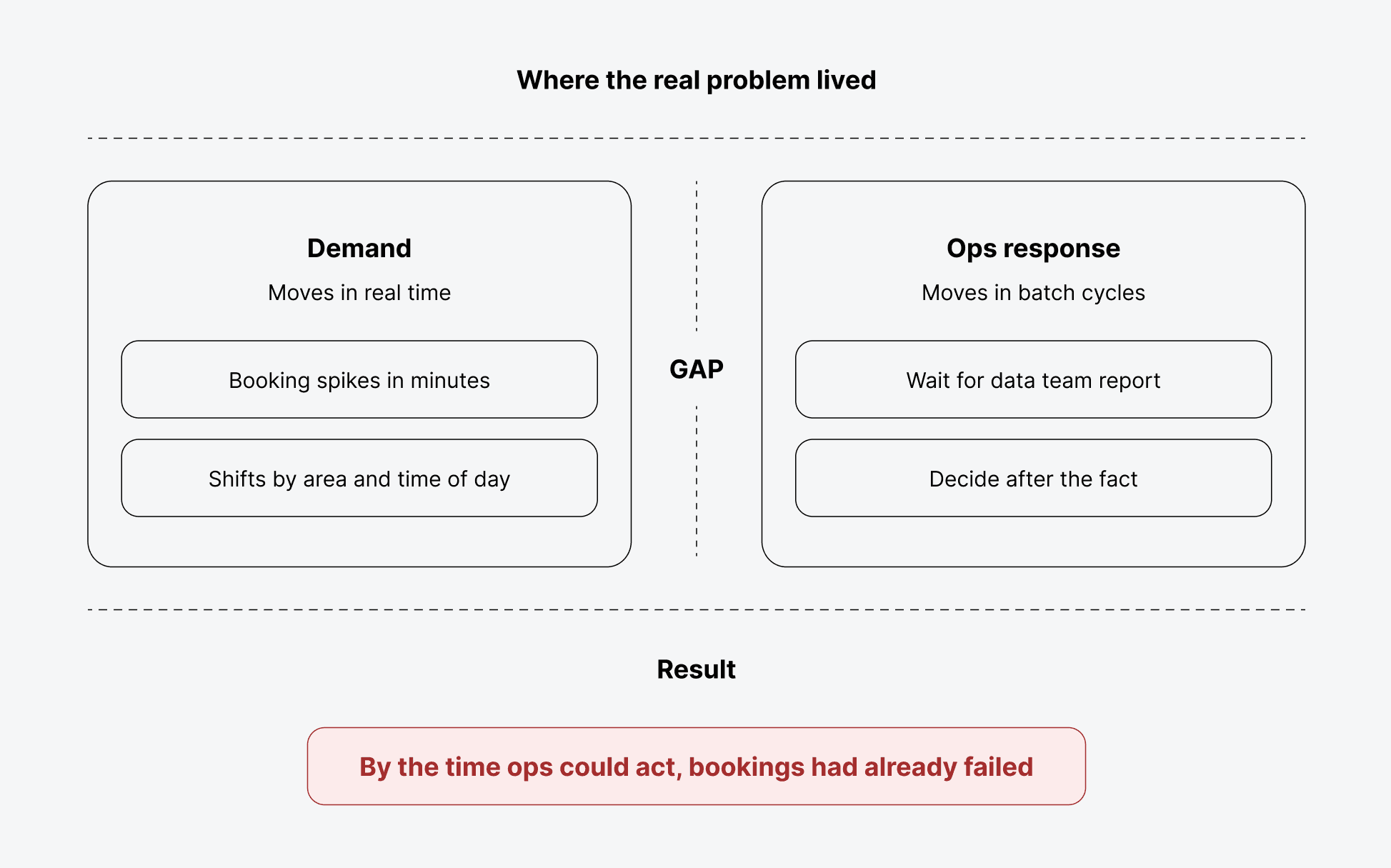
The answer had to be spatial, real-time, and built for the people making decisions on the ground.
Design Approach
Building a solution for the operations team meant three things had to be true at once:
Spatial, because the problem was fundamentally about location.
Real-time, because by the time a report was generated, the window to act had already passed.
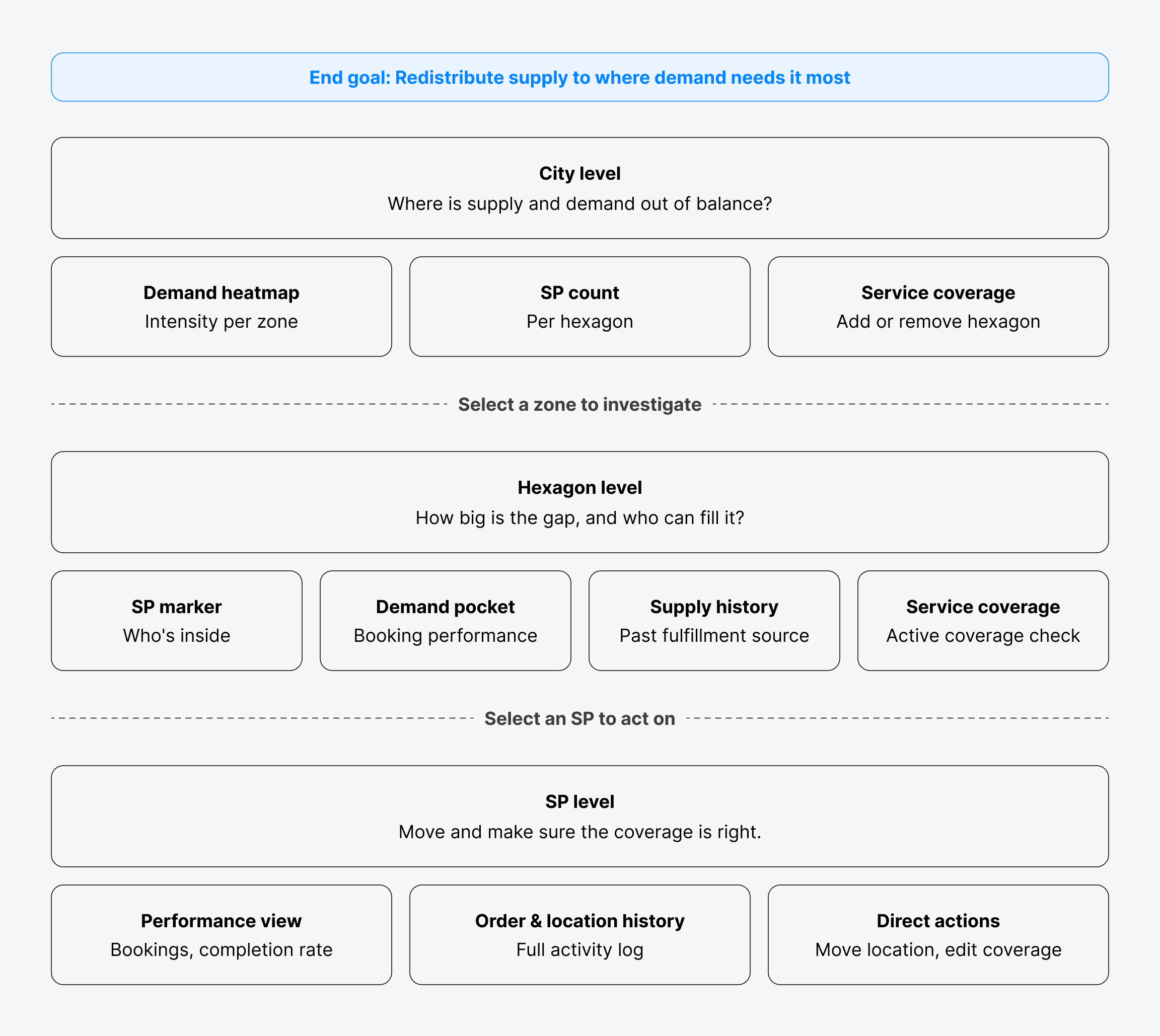
Built for ops, not for analysts or engineers, but for people making fast decisions under pressure. Every view, every filter, and every action serves one end goal: redistributing supply to where demand needs it most.
Why Hexagons?
H3 divides a city into uniform hexagonal cells — equal distance to all neighbors, no gaps between tiles, 16 levels of zoom granularity. Unlike arbitrary zones or hand-drawn coverage areas, H3 cells behave predictably at every scale — from a single neighborhood to an entire city. Proven by Uber for dynamic dispatch and demand pricing, it was the right foundation to build on.

Information Architecture
The dashboard is structured as a three-step decision journey — each level answering a sharper question, each unlocking the actions needed to act on it.
Decisions Made Along the Way
Four friction points shaped the final design, each one leading to a concrete decision.
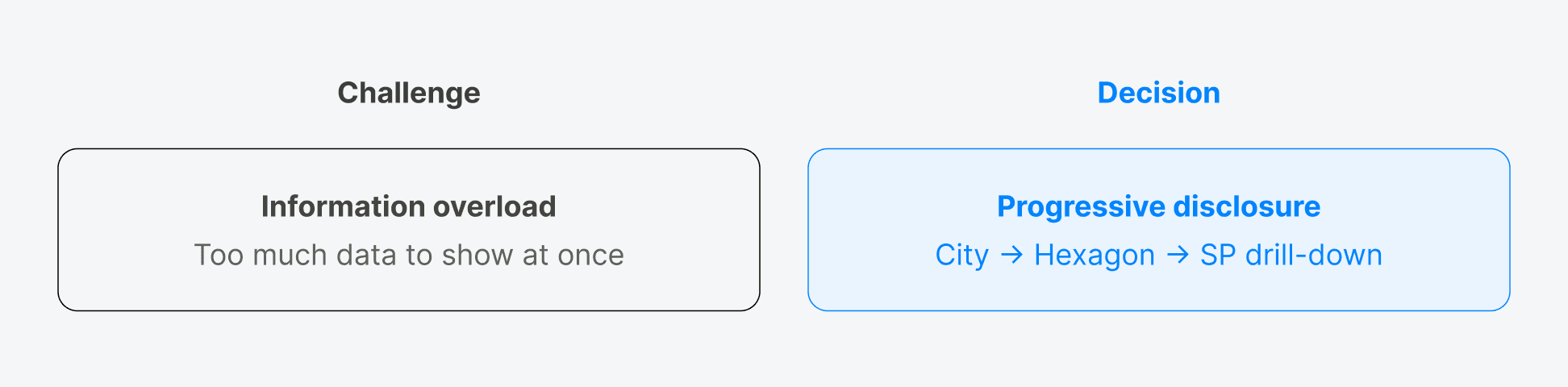
Progressive disclosure
Every level of the operation generates data, city-wide demand, zone-level allocation, individual SPperformance. Putting all of it on one screen creates noise, not clarity. The drill-down structure meansops only sees what's relevant to the decision they're making right now.
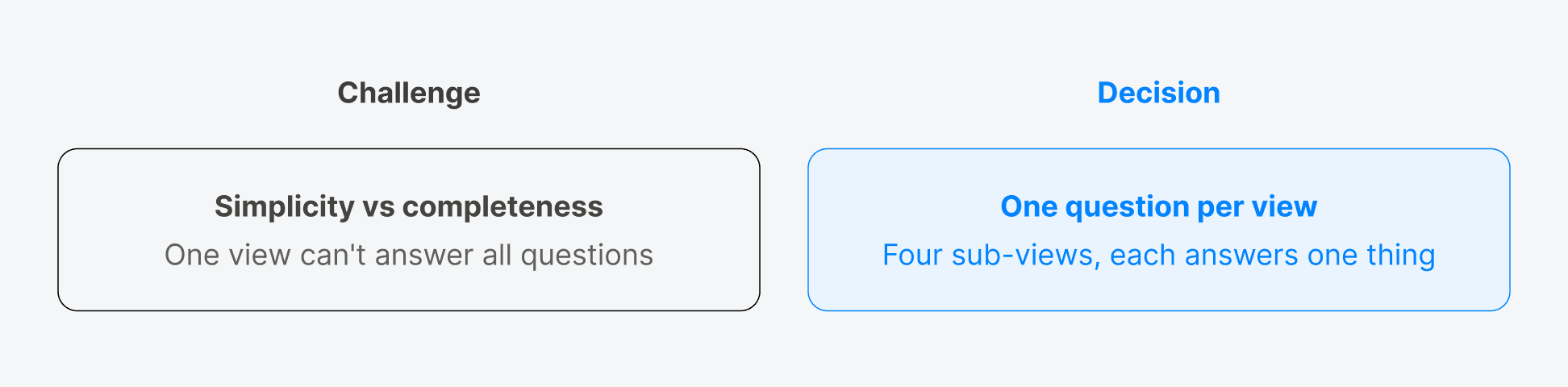
One question per view
Within a single hexagon, an ops team might need to ask: who's here, how are bookings performing,where did past orders come from, and is this area even covered? These are four different questions.Mixing them into one view means none of them gets answered clearly.
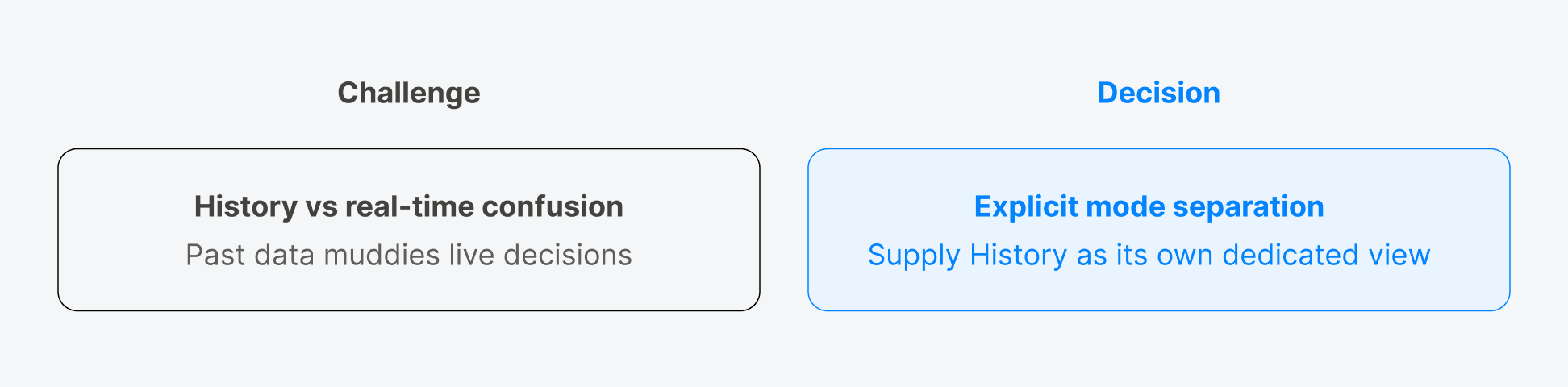
Explicit mode separation
Supply History tells ops where past orders were fulfilled from, valuable for spotting anchor pointmisalignment over time. But shown alongside live data, it creates ambiguity: is this SP here now, orwere they here last week? Separating it into a dedicated mode removes that confusion entirely.
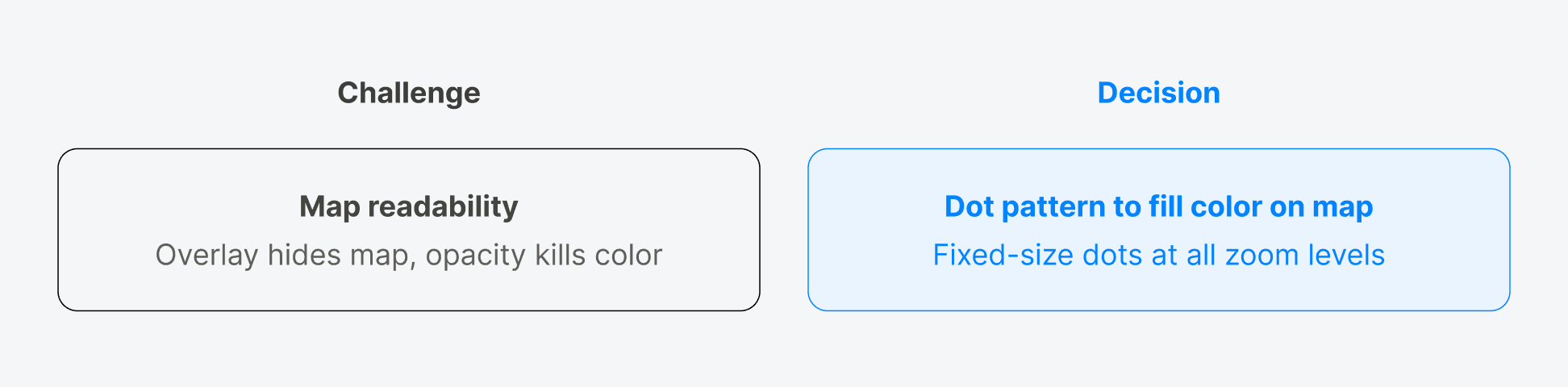
Dot pattern fill
Demand color on hexagons is the primary signal, it tells ops where the hotspots are at a glance.But a solid overlay blocks the map underneath. Reducing opacity fixes the map but kills the color.The solution came from pinhole glasses: dots create gaps for the map to show through, while the fillscarry the full demand color. No tradeoff needed.
Design Solution
Every feature in ATLAS exists to answer one question at a time, moving ops teams from a broad city-wide view down to a single actionable decision about one Service Partner.
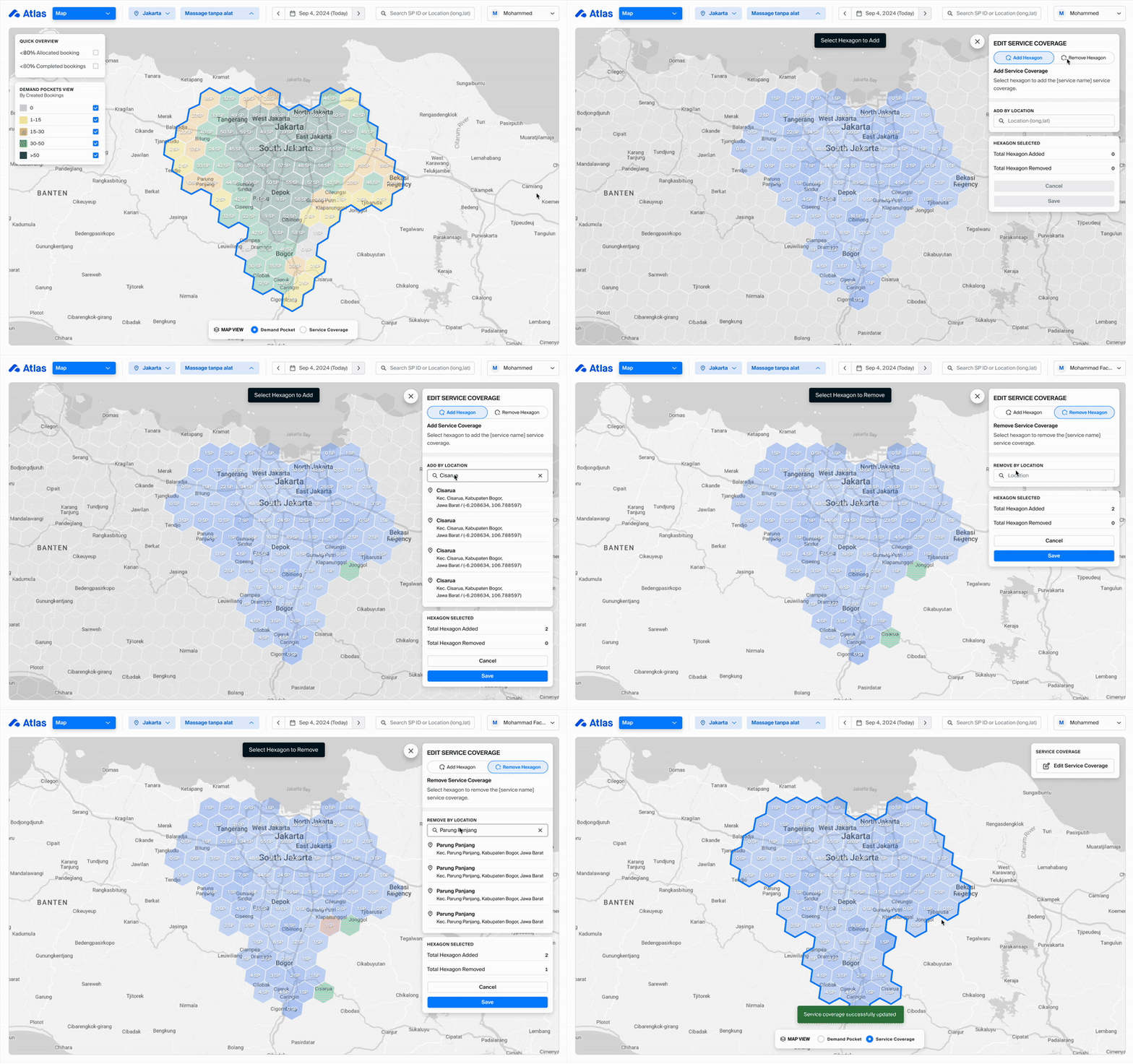
City Level View
Before ops can act, they need to know where to look. At city scale, the map shows demand intensity across every hexagonal zone alongside the number of Service Partners inside each one. Two quick filters sharpen the picture immediately, highlight zones where allocated bookings are below 80%, or where completed bookings fall short. Problem areas surface in seconds, without pulling a single report.
From this same view, ops can also adjust service coverage at city scale, adding or removing hexagons from a service type's active area. The macro decision happens here, before zooming in.
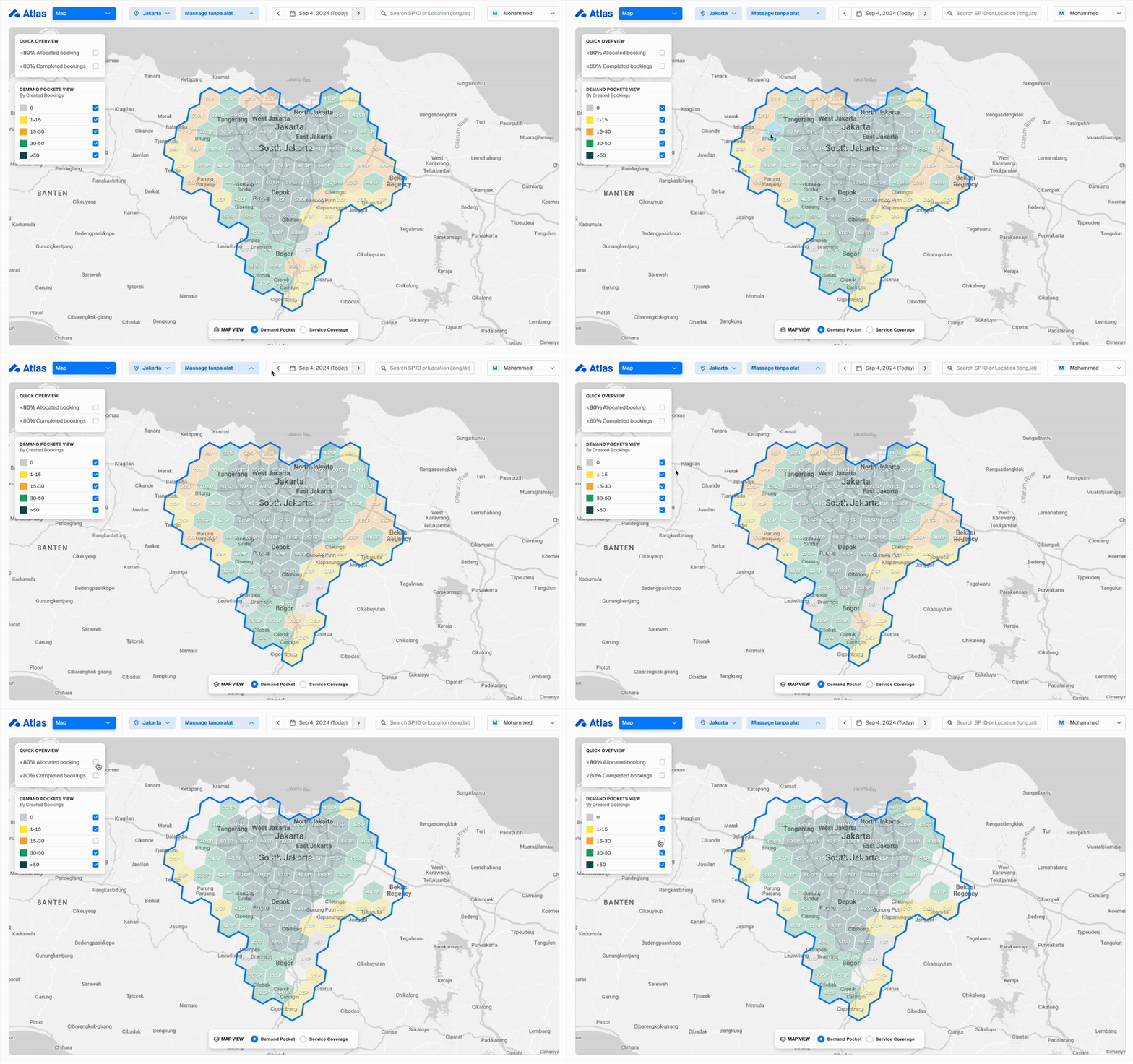
Edit Service Coverage
The Edit Service Coverage feature provides the operational team with a comprehensive view of service coverage at both city-level and detailed hexagon-level. This allows them to easily manage and adjust the areas covered by each service partner (SP).
Add or Remove Coverage: Operational teams can quickly add or remove hexagons from a service partner’s coverage area. The process is straightforward, involving just a few clicks to select the relevant hexagons.
Location Search: To streamline the process, a search function allows ops to quickly find specific locations, eliminating the need for manual zooming or scrolling. This enhances efficiency and ensures more precise edits without wasting time navigating the map.
This feature empowers the operational team to make real-time adjustments to coverage areas, ensuring optimal service distribution and quick responses to changing demand.
Hexagonal Level
Selecting a zone opens a more focused view. This is where ops teams diagnose, not just see that something is off, but understand why. Four sub-views each answer a distinct question:
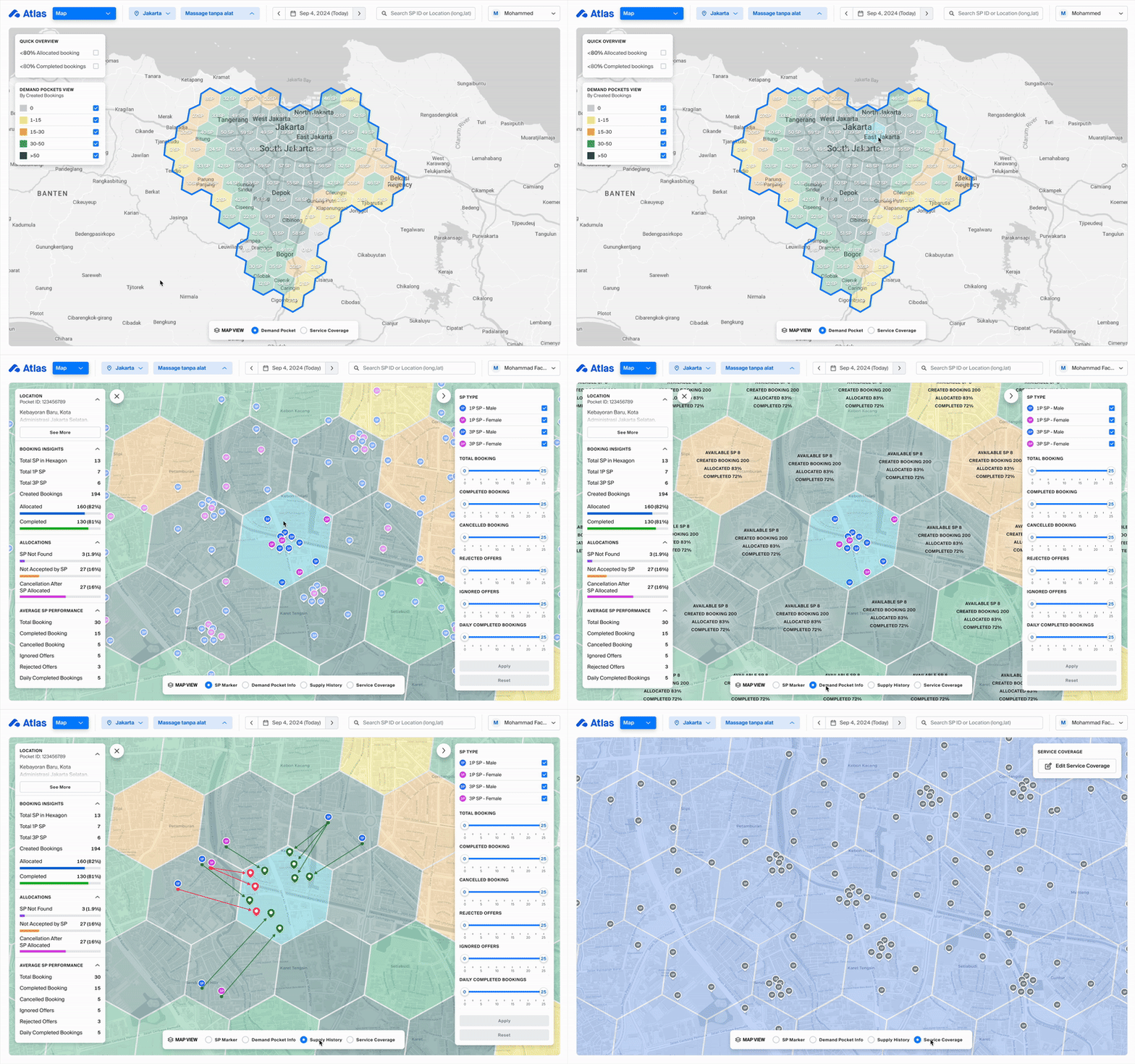
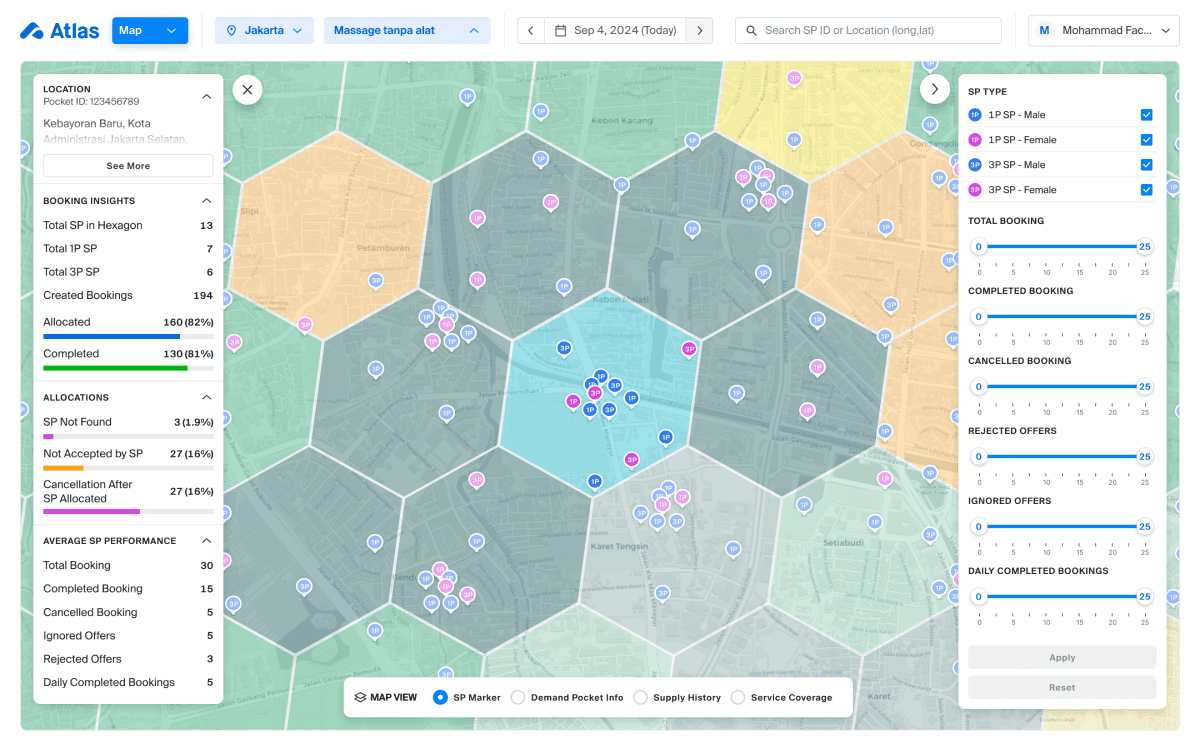
SP Marker View
Who is inside this zone, and what type are they? For services with gender preferences, SPs are further broken down by gender for more precise reallocation decisions.
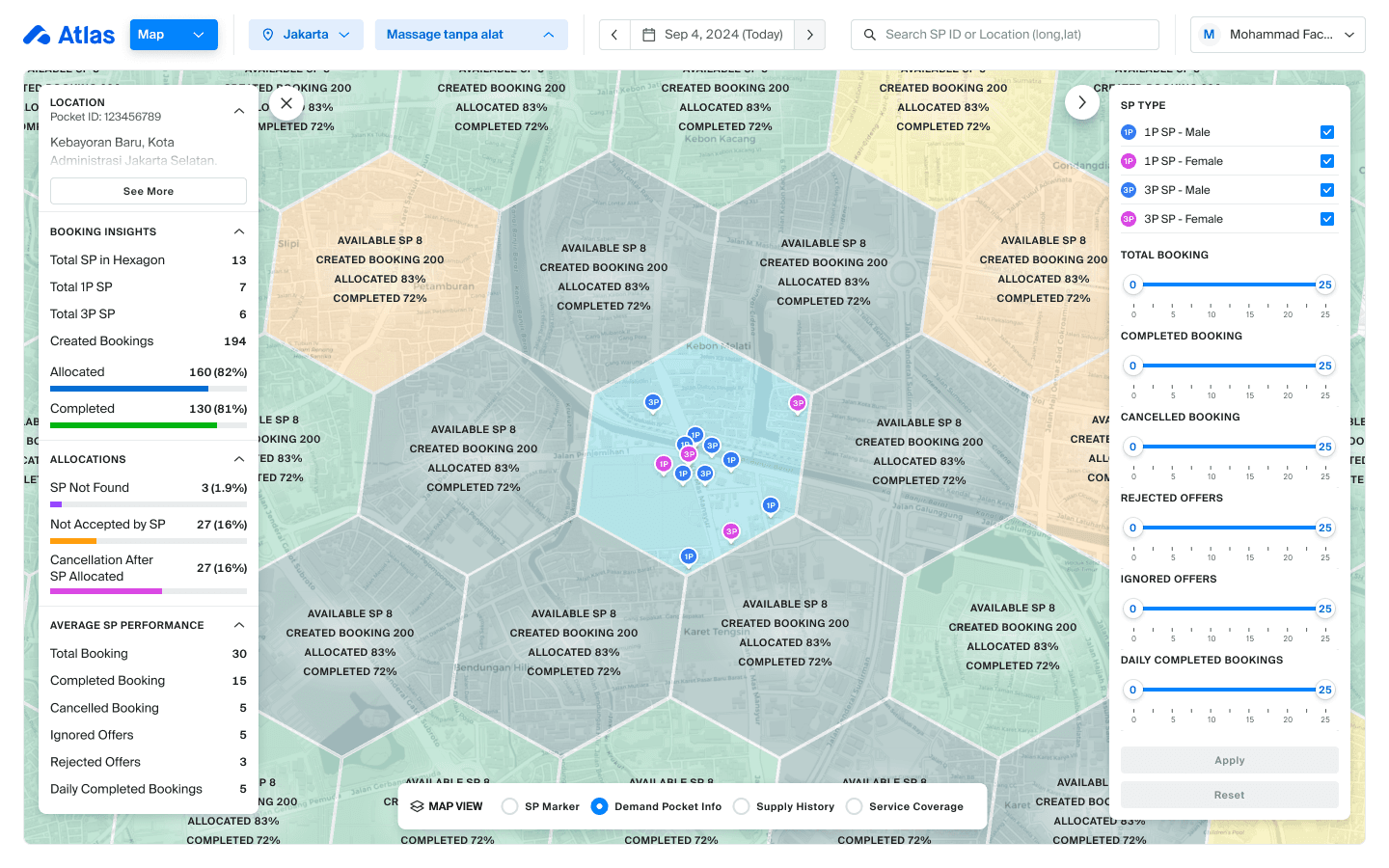
Demand Pocket View
How are bookings performing in this zone? Allocation rate, completion rate, cancellations, everything ops needs to assess whether supply is actually meeting demand here.
Supply History View
Where did past orders in this zone actually get fulfilled from? If orders are consistently served by SPs outside the zone, that's a signal the anchor points need to move.
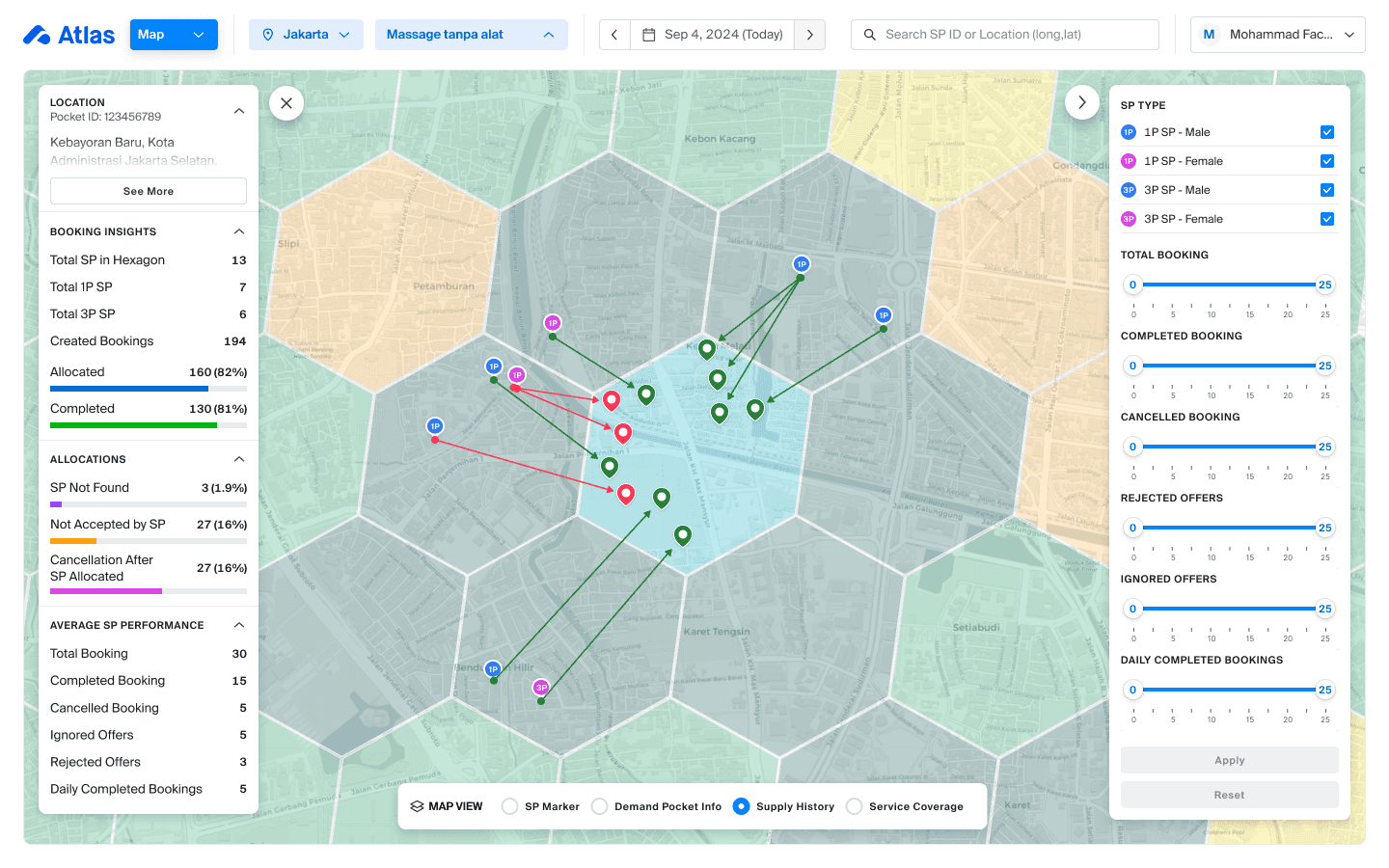
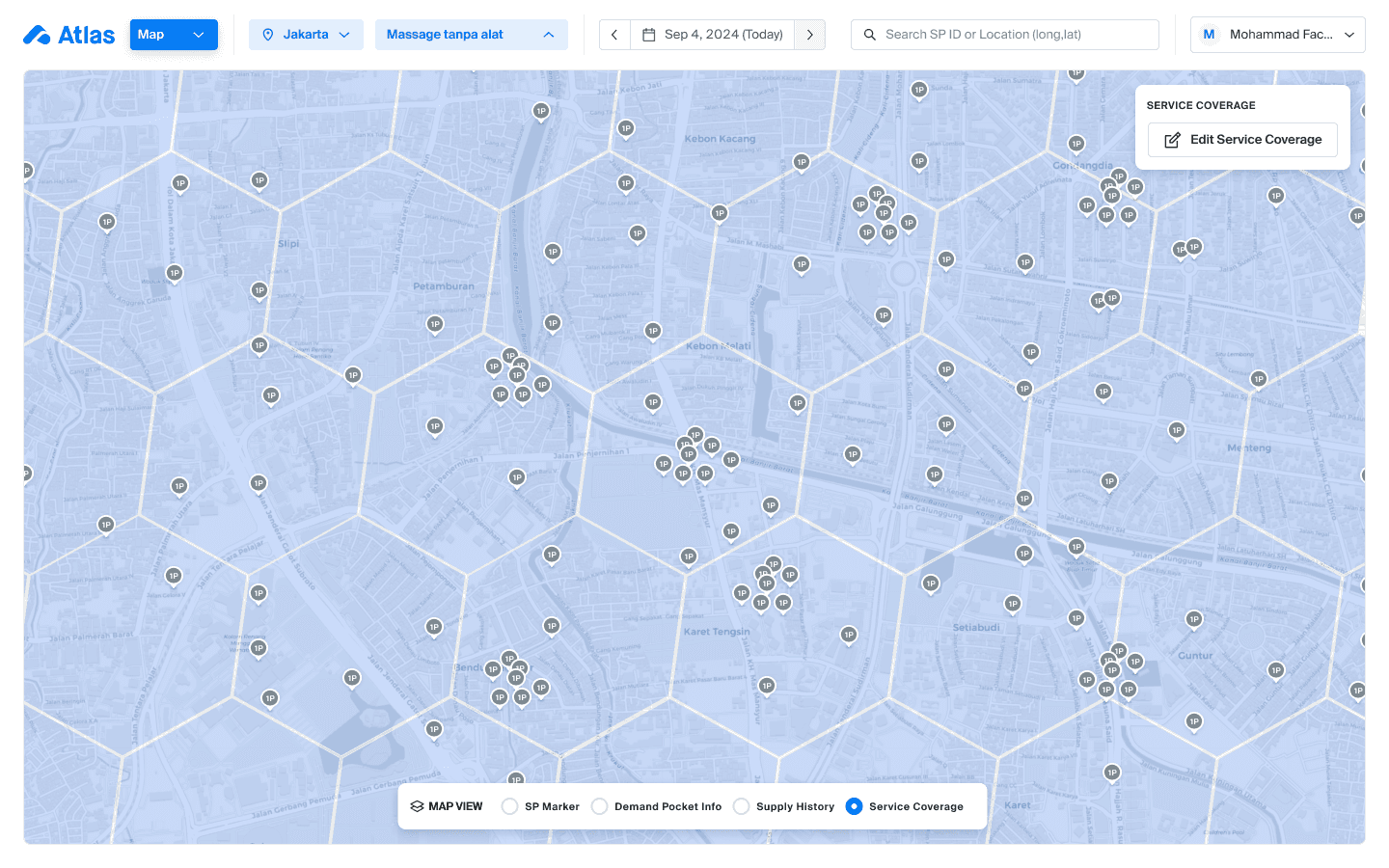
Service Coverage View
Is this area actively covered for the service type being monitored? Gaps here explain unallocated bookings before ops even needs to look at individual SPs.
SP Level
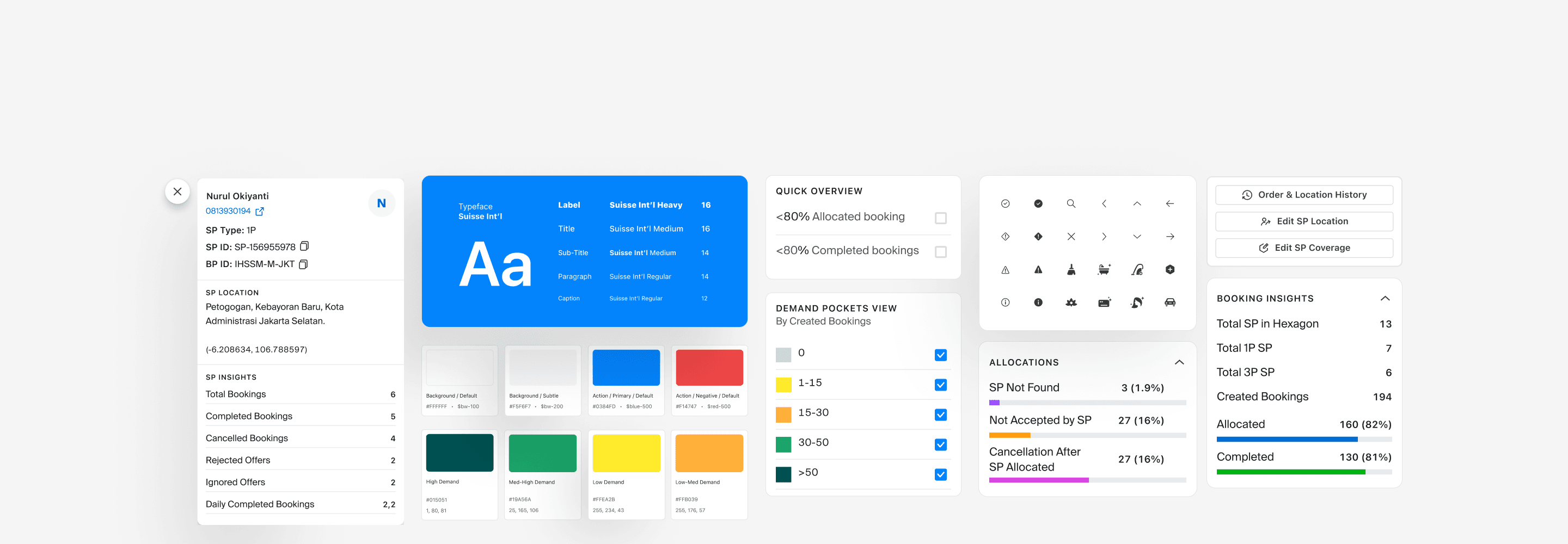
Once a specific imbalance is understood, ops can act directly. Selecting a Service Partner surfaces their full performance picture, total bookings, completion rate, cancellations, ignored and rejected offers. Order history shows the complete lifecycle of every job. Location history maps where they've been operating over time.
Three direct actions are available without leaving the view:
Move Service Provider Location
Edit SP Coverage (Add and/or remove)
SP order and Location History
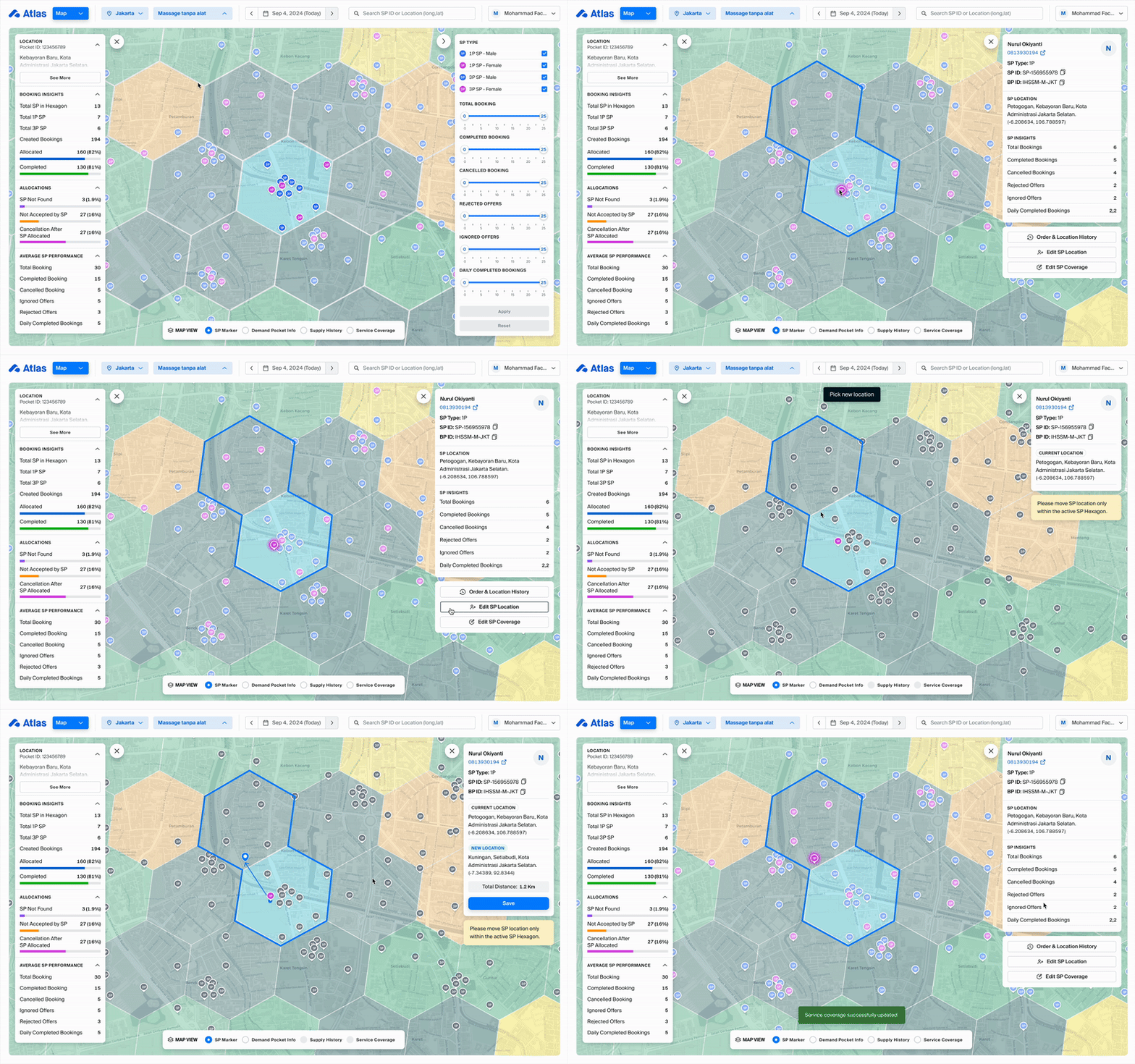
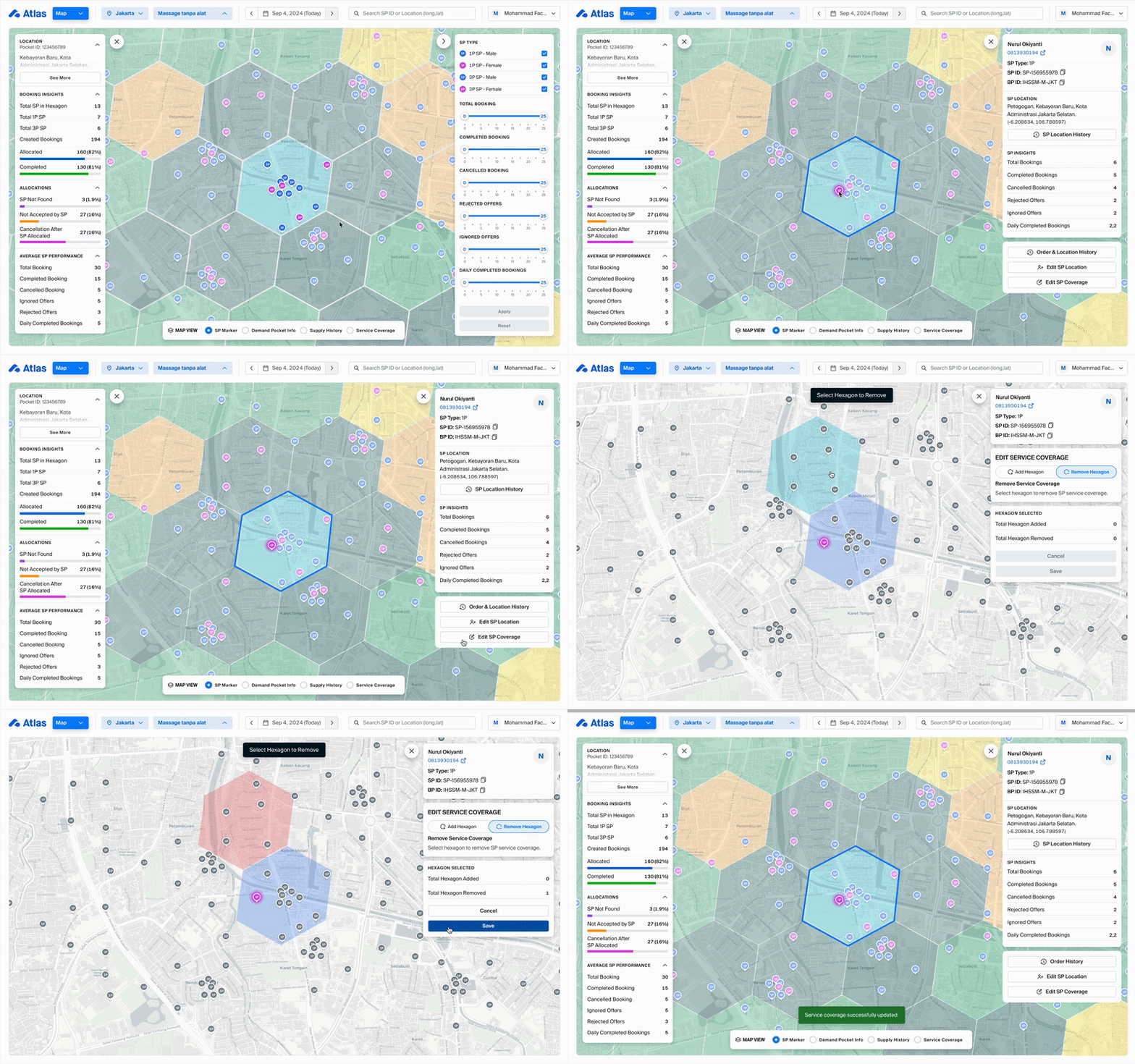
Move Service Provider Location
Reposition the SP's anchor point to better align with demand. The map highlights overcrowded zones and zones with unmet demand, guiding the decision.
The Moving SP Location feature allows the operational team to efficiently reallocate service partners (SPs) based on performance and demand. The process starts by using filters to identify SPs with the best overall performance across the map. Once an SP is selected, the team can view detailed performance highlights for that SP.
Relocating an SP is simple: the team clicks on the "Change SP Location" option and selects the new location. The map also displays SP distribution, highlighting areas with overcrowded SPs and areas with underserved demand, guiding the team to make informed decisions on where to move SPs for optimal coverage and performance.
Edit Service Provider Coverage
The Add and Remove SP Location feature allows the operational team to easily adjust a service partner's (SP) coverage area, similar to the edit service function. This functionality is designed to help optimize SP allocation based on demand.
Add Service Provider Coverage:
The team can select specific hexagons to add to an SP's coverage area, expanding their service reach to new locations.
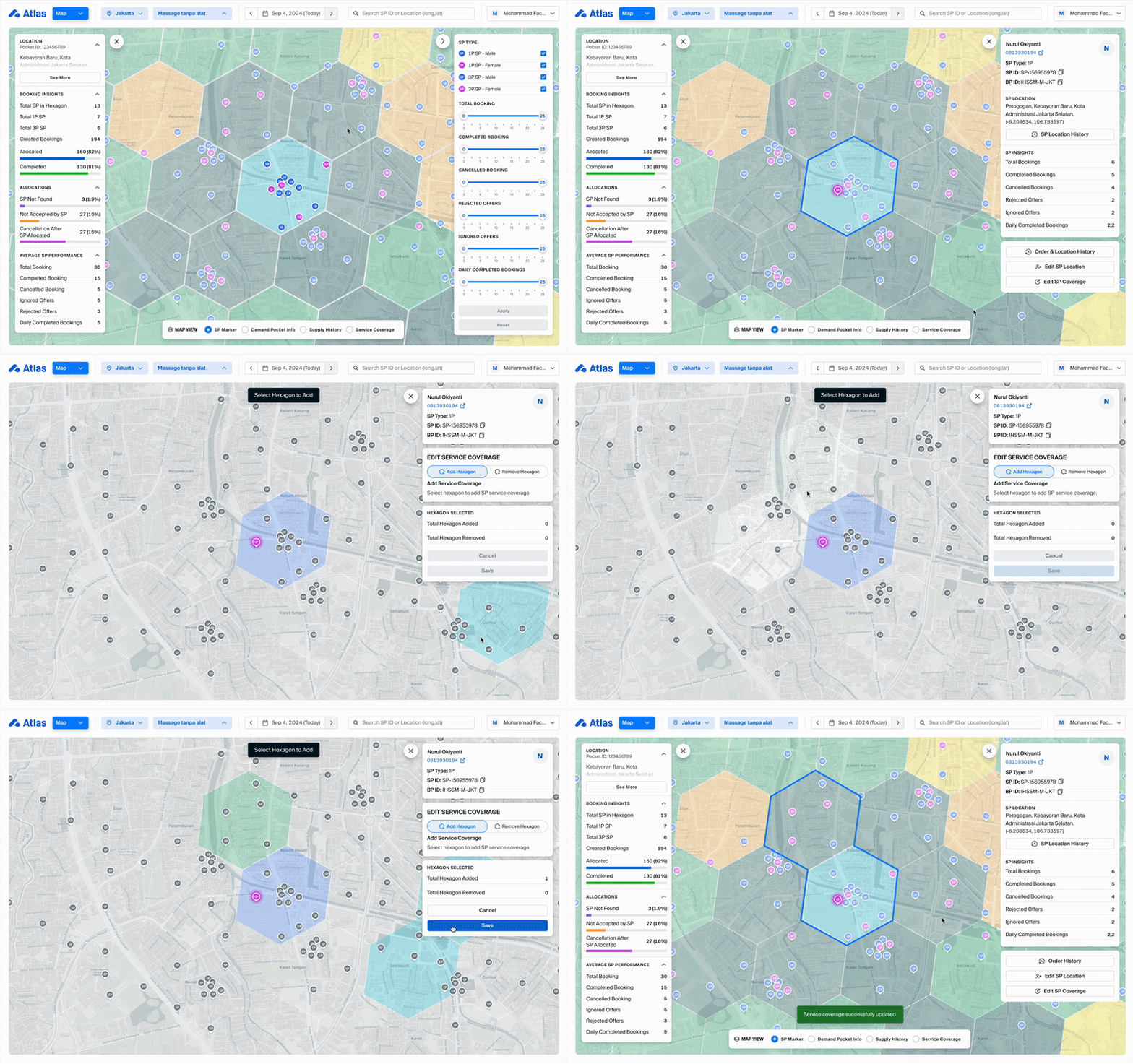
Remove Service Provider Coverage: Similarly, the team can select hexagons to remove from an SP's coverage, streamlining their area of responsibility based on performance or demand.
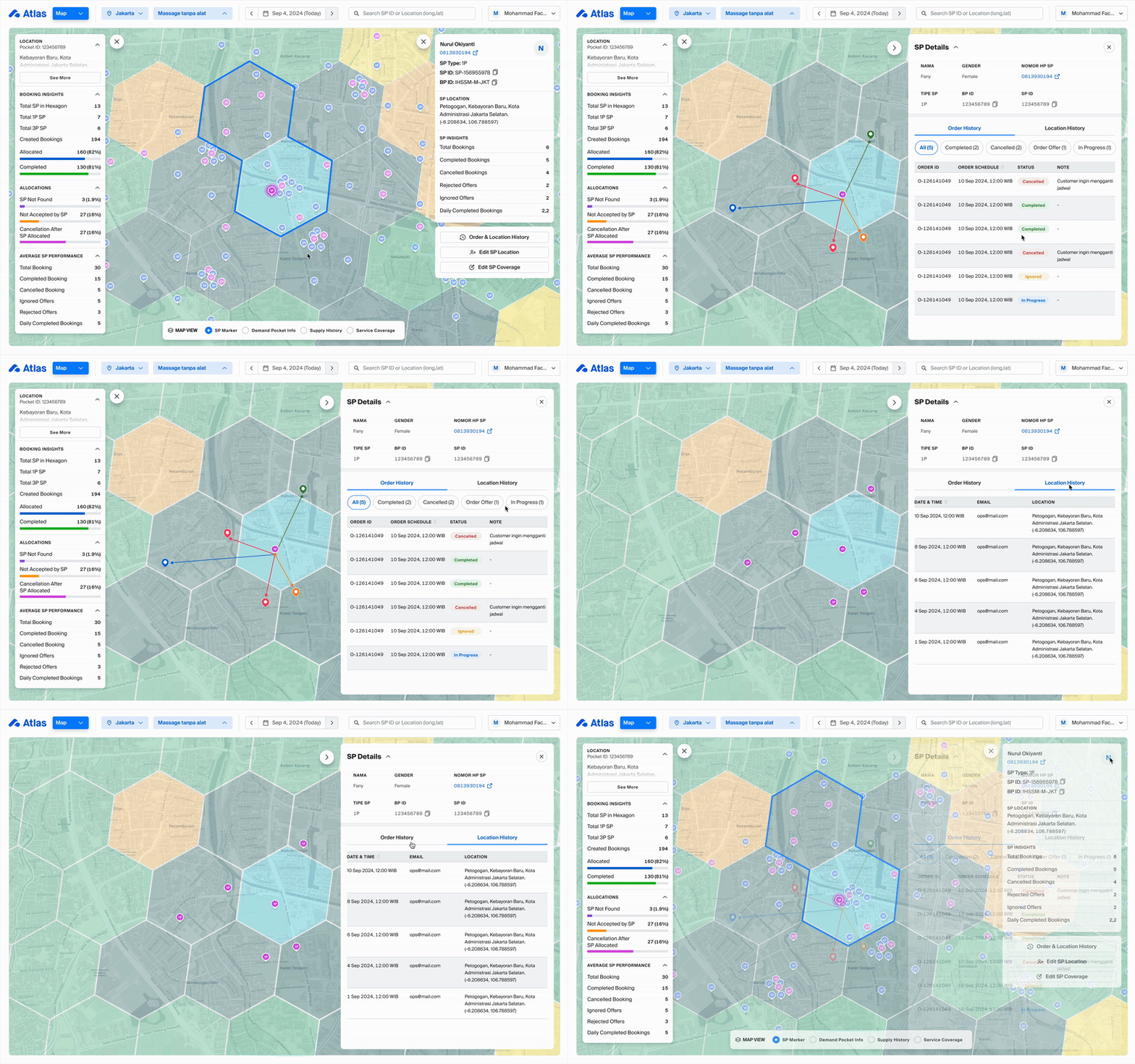
SP order and Location History
The SP Order and Location History feature provides operational teams with detailed insights into each service partner’s (SP) activity, including both order and location history.
Order History: This section tracks the complete order lifecycle, showing the status of each order from offered, assigned, and ongoing to cancelled. This allows the team to monitor SP performance, track order fulfillment, and identify any potential issues or bottlenecks in the service process.
Location History: The location history provides a log of each SP's movements, with precise details on the latitude and longitude of their position, as well as the time they were at each location. This helps the team track service partner coverage and movement patterns, ensuring they are optimally positioned to meet demand.
This feature enables a deeper understanding of SP performance, both in terms of orders and location management, providing operational teams with the data they need to make informed decisions.
Outcome
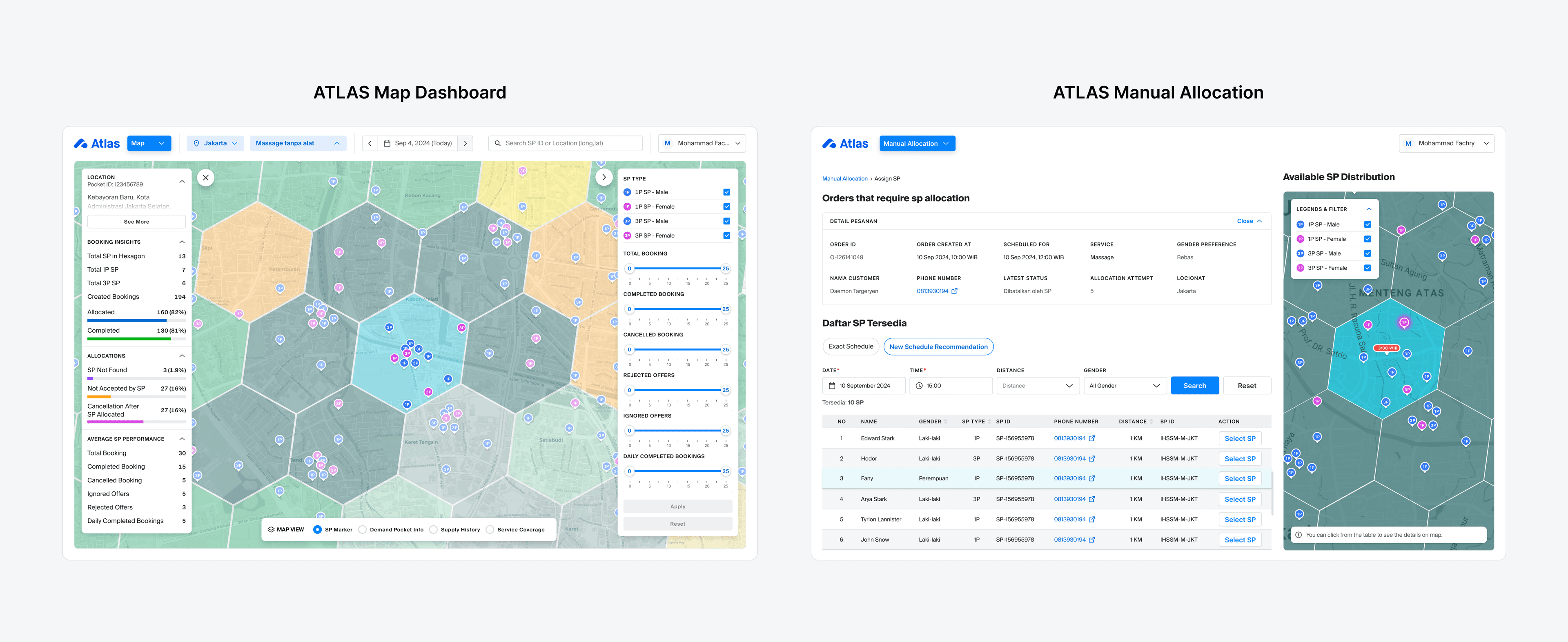
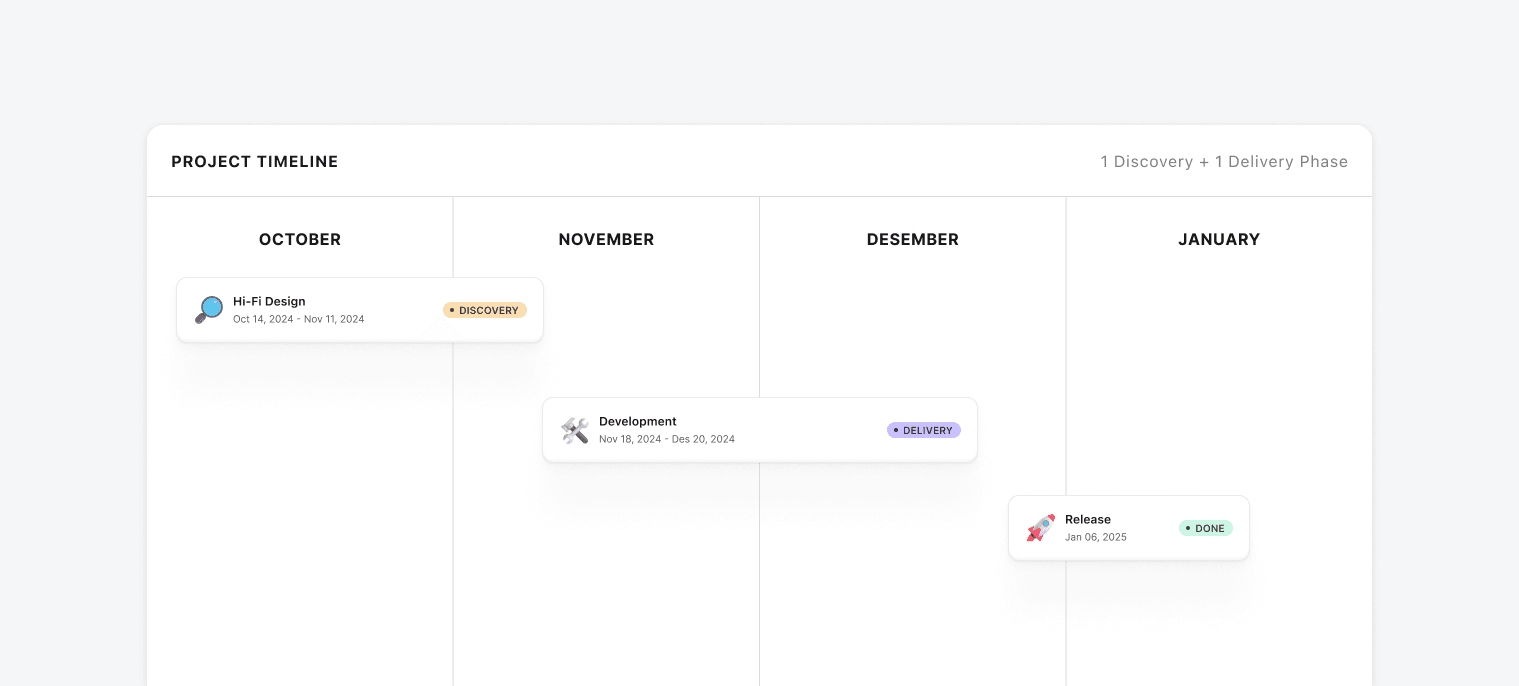
ATLAS launched in January 2025 as a prevention layer, giving ops teams spatial visibility to act before bookings fall through. The early signal was immediate: ops teams could finally make SP reallocation decisions independently, without waiting on the data team. Booking conversion rates improved as anchor points were redistributed to better match real demand patterns.
But the more telling outcome wasn't a metric. It was what ATLAS revealed next.
Even with better SP placement, some bookings still slipped through. Prevention alone wasn't enough, the team needed an intervention layer too. That insight led directly to a second mode, built within the same ATLAS environment: Manual Allocation.
One environment. One dropdown switch. Prevention and intervention, end to end.
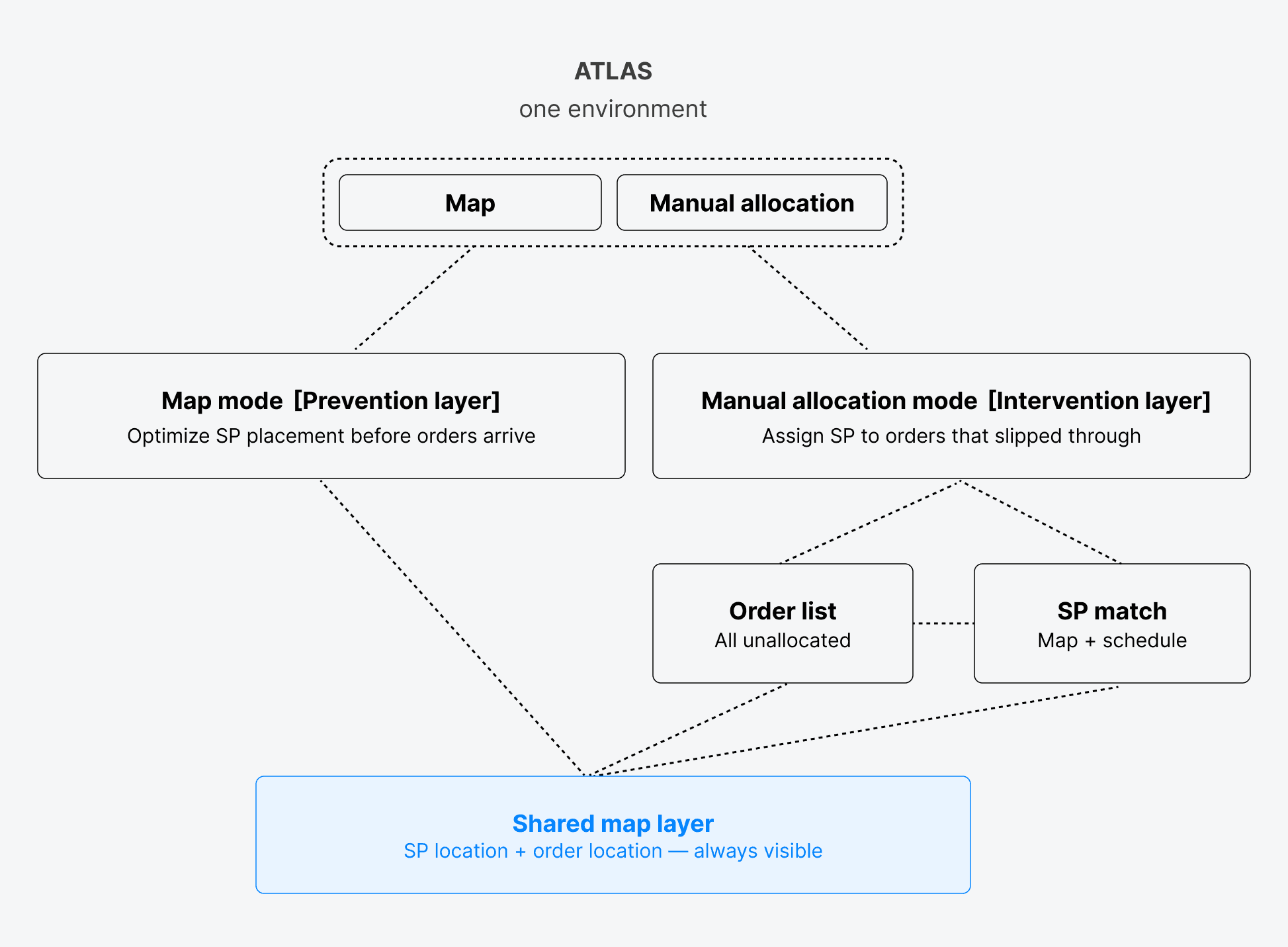
Both modes live within the same environment, accessible from a single dropdown in the navigation. Map mode is where ops teams monitor and rebalance SP placement proactively. Manual Allocation is where they catch what slips through. Together, they cover the full arc of an order: from before it's placed to after it fails to allocate.